Listen never stores your conversations on our servers. Your audio stays in your personal iCloud Drive, encrypted by Apple. Only the AI processing step transits through our infrastructure, without any retention.
First launch
After installing via TestFlight or the App Store, open Listen. The app asks for microphone permission - grant it. That's the only permission required.
Your first recording
Tap the "Record" tab at bottom left. Confirm consent of people present, then the black screen with green bars appears. Tap Stop to finish.
Each bar represents a 30-second segment processed. More bars = longer session.
Recording with Apple Watch
The Watch app opens automatically from the Watch. Tap the start button. The Watch and iPhone share the same iCloud library.
Understanding transcription
Listen transcribes in 30-second segments during recording. At the end, a diarization step identifies speakers. The result appears in the library.
 Pause
Suspends recording
Pause
Suspends recording
 Stop
Ends and transcribes
Stop
Ends and transcribes
 Resume
s after pause
Resume
Resumes after pause
The library
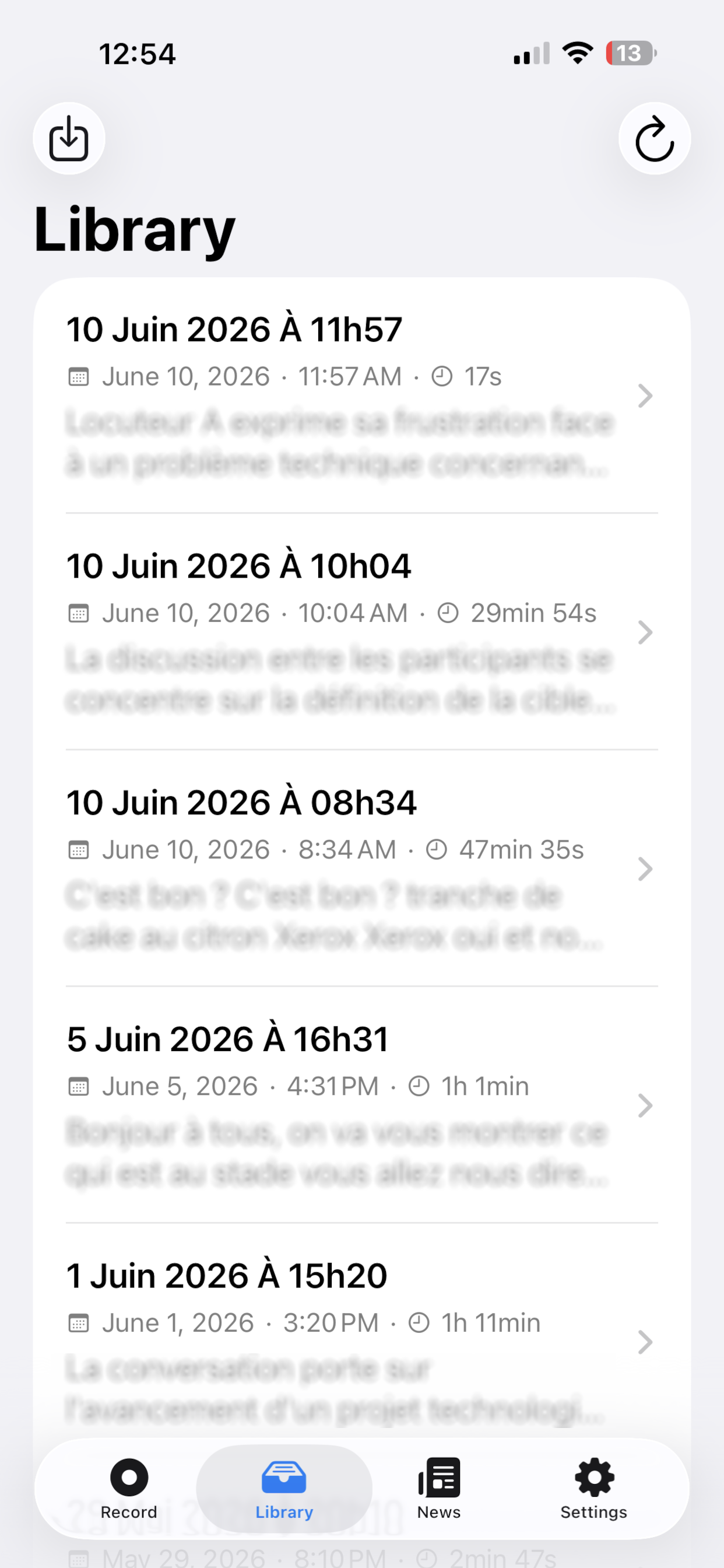
All your recordings are listed with title, date, duration and text preview. Swipe left to delete. Tap to see details.
Import an audio file
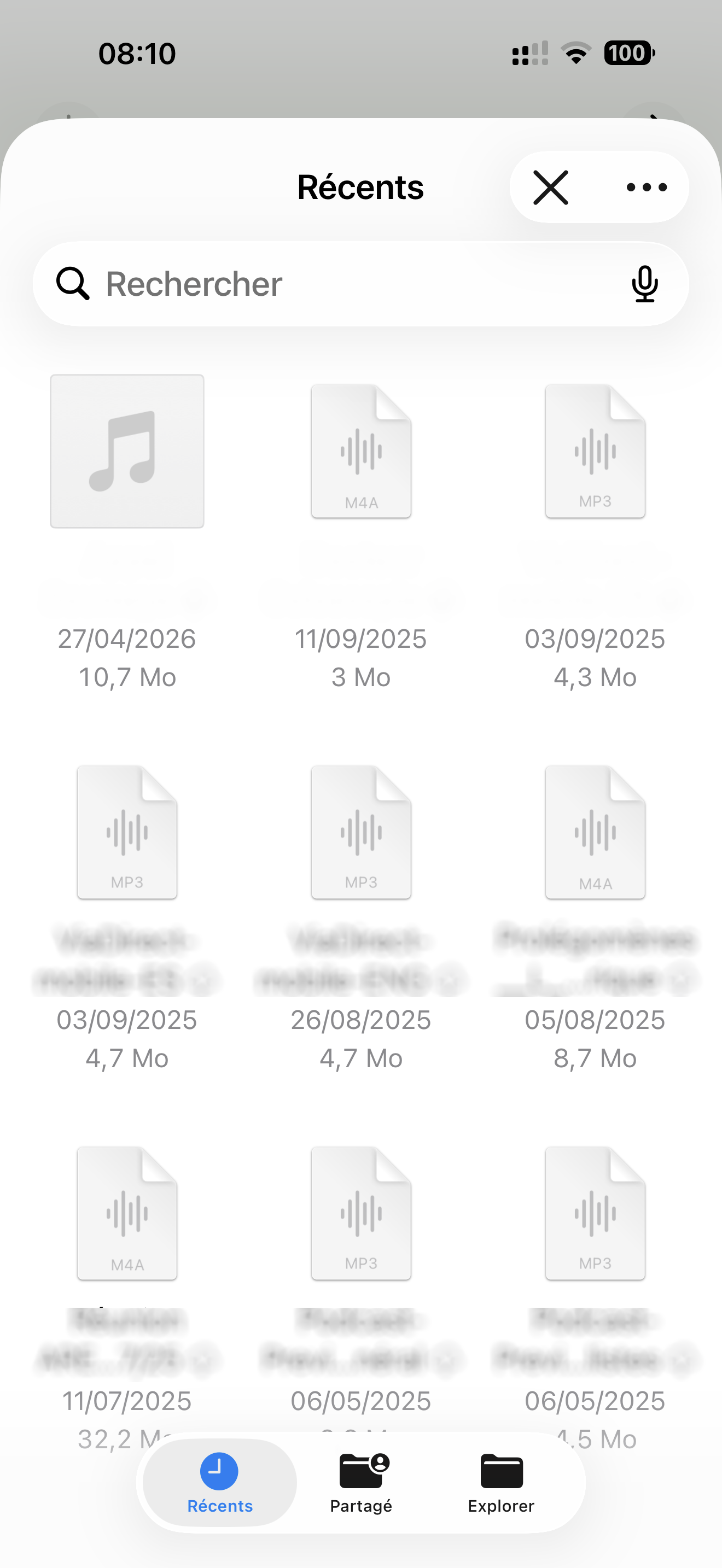
Tap the ↓ button at the top left of the Library to import an existing file (Dictaphone, other app, email…). It will be transcribed just like a direct recording.
🎤 iPhone Voice Memos (Dictaphone) → M4A, directly compatible
⚠️ Max 25 MB (~50 min M4A standard, ~26 min MP3 128 kbps)
Re-transcribe and Analyze
If transcription is incomplete or you switch engine, use "Re-transcribe". "Analyze" regenerates the summary and decisions/tasks from the existing transcript.
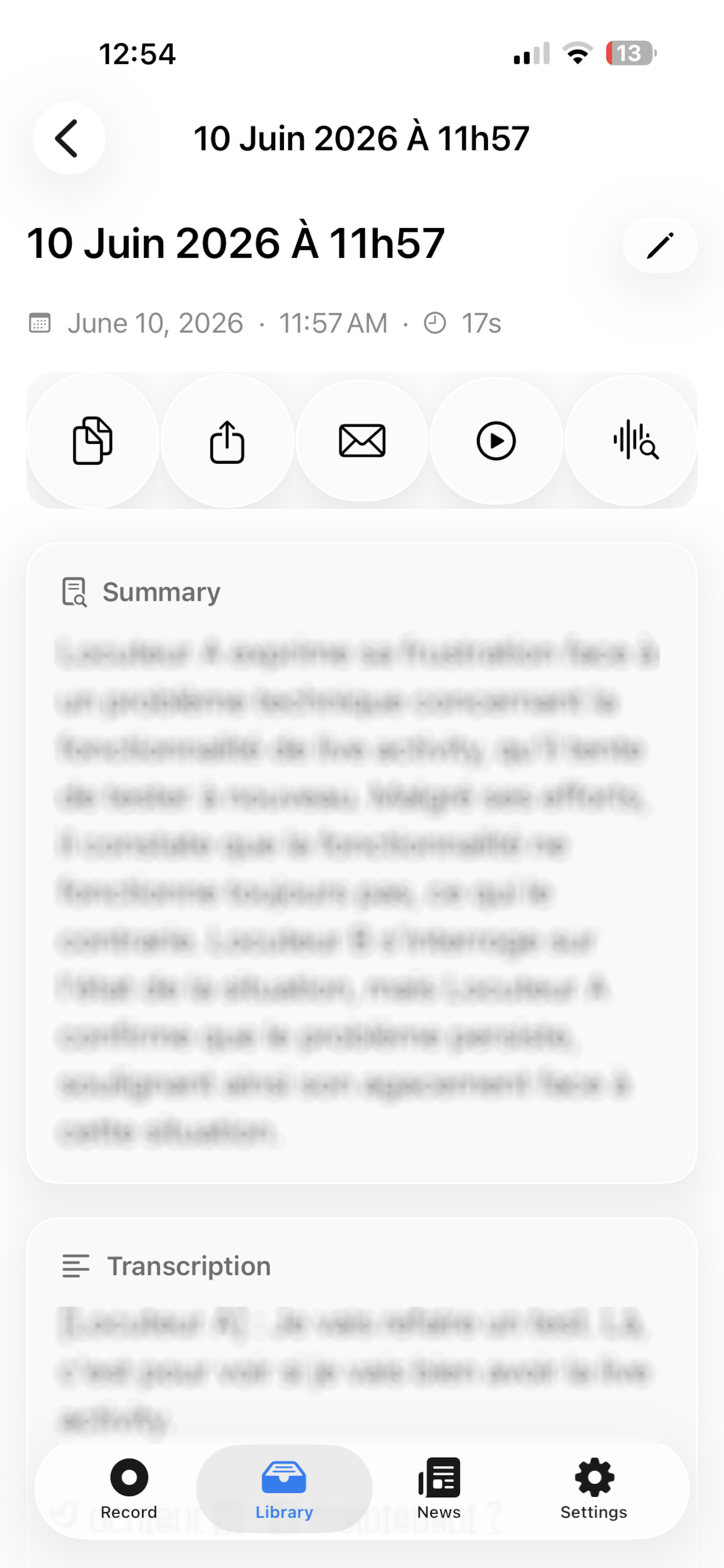
Summary and Decisions/Tasks
After each recording, AI automatically generates a summary and extracts decisions made and tasks to do. Tasks are checkable directly in the app.
Enriched email in your language
The automatic email contains: summary, decisions, tasks and full transcription - in your iPhone language (French, English or Spanish).
Your personal API keys
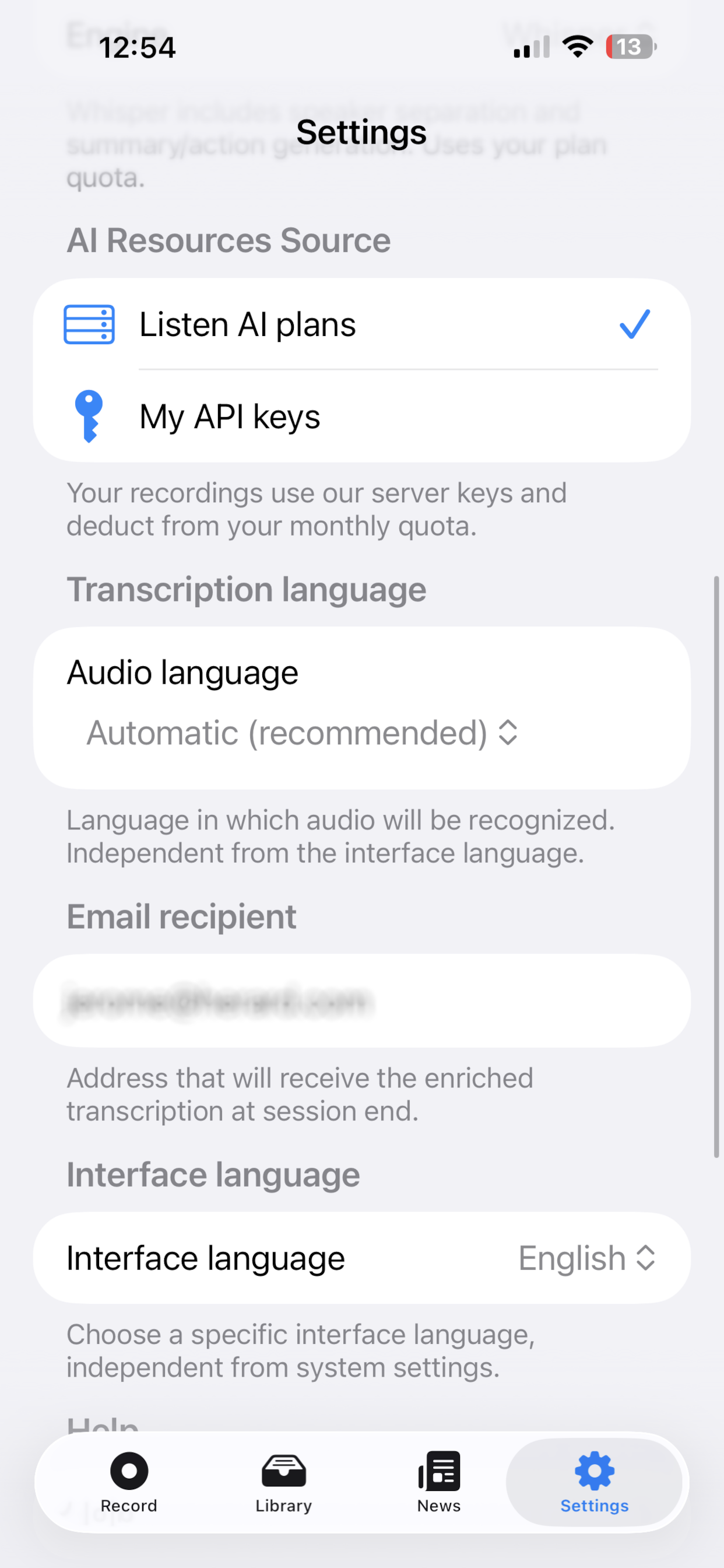
In Settings, enter your own OpenAI key (sk-…) and/or Gladia key. They will be used instead of server keys - your monthly quota is not counted.
Privacy - nothing stored on our servers
No conversation is stored with us. Audio stays in your iCloud Drive (Apple encrypted). Transcriptions are processed in transit by the AI API, then immediately deleted.
Frequently asked questions
How do I record a conversation with my iPhone?
Open Listen and tap the record button: the app captures audio continuously, even in the background or with the screen locked. Tap pause to suspend, or stop to finish and automatically start transcription. The recording is then available in your library, synced via iCloud.
How do I record a conversation with Apple Watch?
From the Listen app on your Apple Watch (watchOS 26), tap the record button right on your wrist, without taking out your iPhone. You can pause, resume or stop the recording from the watch; it then syncs automatically with your iPhone for transcription.
How do I transcribe a recording into text?
Once the recording is finished (or an audio file is imported), open it in your library and start transcription: Listen converts the audio into text with automatic speaker identification (diarization), then generates a summary, decisions made and tasks to do. The text can then be sent by email.
How do I use my own Whisper or Gladia API key?
In Listen's settings, under API keys, paste your personal OpenAI key (for Whisper) or Gladia key. Create it beforehand at platform.openai.com or app.gladia.io. Once the key is saved, select the matching engine before starting a transcription: usage is then billed directly by the provider, without going through Listen's time packs.
Is Listen free?
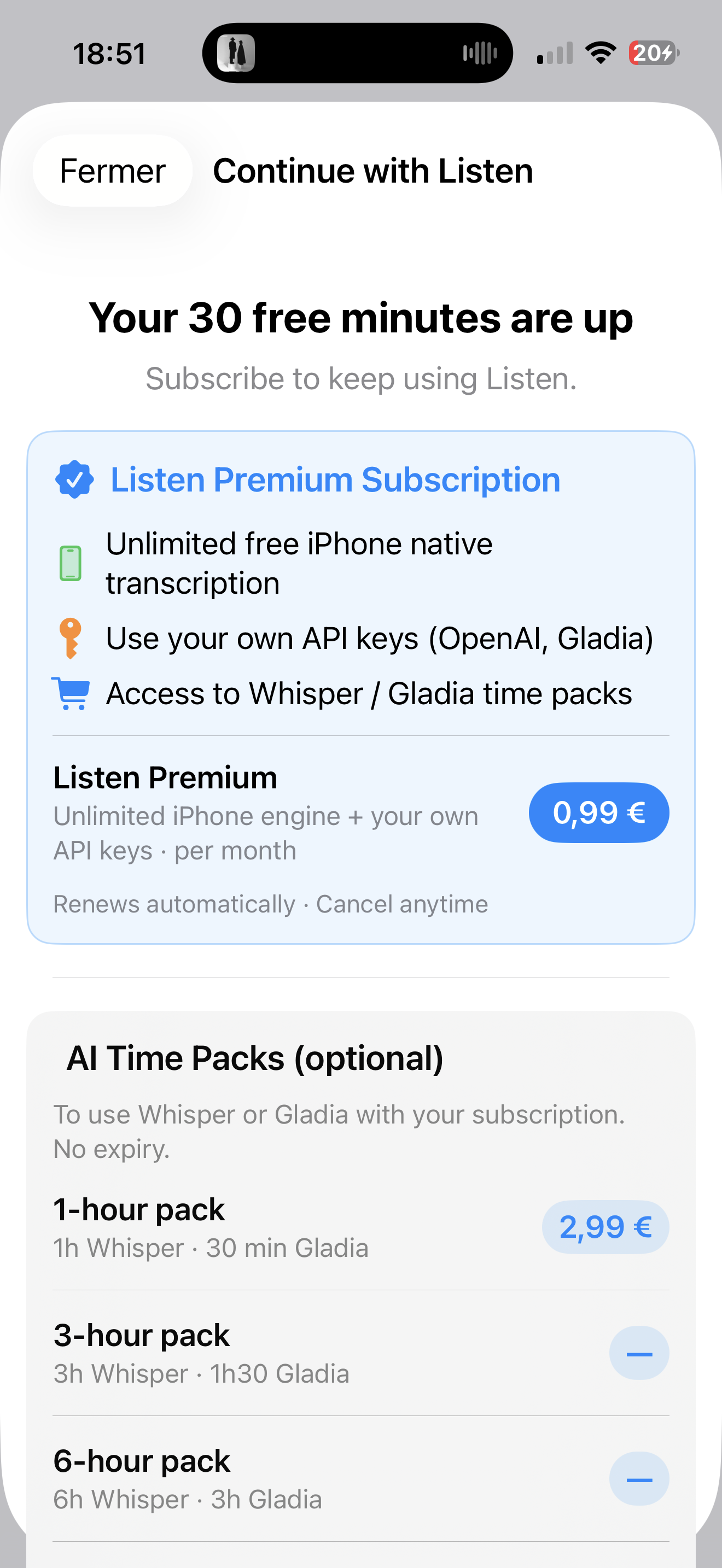
Listen offers a 30-minute free trial with our best AI engine when you install the app. After that, native iPhone transcription stays unlimited and free with the Listen Premium subscription (€0.99/month). The Whisper and Gladia engines require your own API key or a time pack.
Are my recordings stored on your servers?
No. Listen never stores your conversations on our servers. Your audio files stay in your personal iCloud Drive, encrypted by Apple. Only the AI processing step transits through our infrastructure, without any retention.
What's the difference between the Whisper, Gladia and native engines?
The native iPhone engine is built into iOS: unlimited and free with the Premium subscription. Whisper (OpenAI) and Gladia offer more accurate transcription with advanced speaker diarization, but require your own API key or a time pack (from €2.99).
Does Listen work with Apple Watch?
Yes. You can start, pause and stop a recording directly from your Apple Watch (watchOS 26), without taking out your iPhone.
What audio formats can I import?
Listen accepts M4A, MP3, WAV and AAC files up to 25 MB (about 50 minutes in standard M4A, or 26 minutes in 128 kbps MP3). iPhone Voice Memos are directly compatible.
Can I cancel my subscription at any time?
Yes. The Listen Premium subscription is purchased and managed directly through the App Store, like any Apple subscription: you can cancel it at any time from your Apple account settings, with no commitment.
What languages does Listen support?
The app and transcription engines support French, English and Spanish, with automatic detection of the spoken language.
Ready to get started?
Download